
Greyscale (Grayscale)
What is greyscale?
Greyscale (also spelled grayscale) is an image format in which every pixel holds a single brightness value instead of separate color values. In an 8-bit greyscale image, each pixel ranges from 0 (black) to 255 (white), with shades of grey in between. In computer vision, greyscale images are used to simplify data, cut compute costs, and focus models on shape, texture, and contrast rather than color.
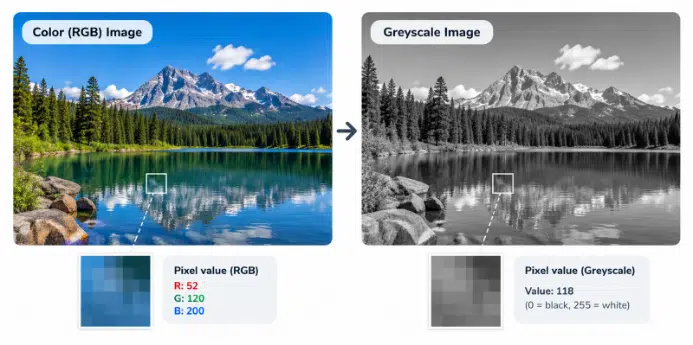
Color image and its greyscale version showing the same scene with one brightness value per pixel
- Greyscale is an image format where each pixel holds one brightness value (0 to 255 in 8-bit) instead of three color values.
- It cuts data to roughly one third, speeds up training, and puts the focus on shape, texture, and contrast.
- In annotation, contrast and display settings decide how accurate labels are, especially for 12-to-16-bit medical images.
- Use it when color adds nothing to the task. Avoid it when classes depend on color, and test both versions if you can.
How Greyscale Works in Computer Vision and Data Annotation
A standard color image stores three channels for every pixel: red, green, and blue. A greyscale image stores just one. The same picture therefore carries roughly one third of the data, which makes it lighter to store, faster to process, and simpler to feed into a model. In annotation, it is also what the annotator sees on screen and what the model later learns from, so the format shapes both the labeling and the training.
To see what a model actually receives, look at a small patch of a greyscale image. Each number is one pixel:
Low numbers are dark and high numbers are bright. A model learns from these patterns of change, which is why edges and contrast matter so much in greyscale data, and why annotators depend on them to place accurate boundaries.
Converting color to greyscale
Conversion combines the three color channels into one brightness value. The most common method is a weighted average that mirrors how the human eye perceives light, giving green the most weight and blue the least (the ITU-R BT.601 standard):
Grey = 0.299 × R + 0.587 × G + 0.114 × B
A plain average of the three channels also works, but the weighted version stays closer to how the scene actually looks. In Python with OpenCV, the conversion is one line:
import cv2
img = cv2.imread(“image.jpg“) # loaded as BGR
grey = cv2.cvtColor(img, cv2.COLOR_BGR2GRAY) # single channel
Bit depth
Bit depth sets how many shades of grey an image can hold. An 8-bit image has 256 levels (0 to 255). A 16-bit image has 65,536 levels. Medical scans such as CT and MRI commonly use 12 to 16 bits, so they capture intensity differences that a standard 8-bit screen cannot even display.
Why greyscale matters in AI and machine learning
The main benefit is efficiency. One channel instead of three means smaller inputs, lower memory use, and faster training, which matters on large datasets and edge devices. Greyscale also removes color as a variable. When color does not help the task, converting stops a model from learning irrelevant cues such as lighting tint or differences between cameras, and it pushes the model toward structure like edges, contours, and texture.
Many sensors also produce greyscale data natively, including X-ray, CT, MRI, ultrasound, thermal, and many industrial inspection cameras.
Common use cases of Greyscale
Greyscale is widely used in medical imaging for X-rays, CT, and MRI, in OCR and document digitization, in industrial defect detection, in satellite and aerial analysis, and in thermal and infrared imaging. It is also a standard preprocessing step in face detection pipelines.
Greyscale in data annotation
Greyscale changes what annotators can see, so it directly affects label quality. Objectways handles this in a few ways.
Contrast decides boundary accuracy: With no color to separate an object from its background, annotators rely on brightness differences alone. In low-contrast images, boundaries become ambiguous, so annotation guidelines need explicit rules for these cases.
Low-contrast boundary flagged for review
Display settings matter: For 12-to-16-bit images, annotators need tools that support window and level adjustment, which lets them adjust the visible intensity range to reveal subtle differences. Differences in screen brightness between annotators can also shift where each one places a boundary, so calibrated setups and shared reference examples help keep labels consistent.
Quality is measured, not assumed: Teams usually check agreement between annotators with metrics such as Intersection over Union (IoU) on segmentation and bounding box tasks.
Task fit: Greyscale works well for shape-driven objects such as organs, cracks, text, and structural defects. It is a poor fit when the label depends on color.
Limitations and common pitfalls
Color information is lost: Traffic light states, produce ripeness, skin lesion color, and many product defects depend on color. Converting these datasets to greyscale can lower model accuracy.
Different colors can collapse into the same grey: Two visibly different colors, such as a certain red and a certain green, can have nearly identical brightness. After conversion they become indistinguishable, so classes that were easy to separate in color may blur together.
Input channel mismatch: Many pretrained models, such as ResNet, expect three input channels. A greyscale image usually has to be duplicated across three channels before it can be used with them, or the model’s first layer has to be adapted.
The safest approach is to decide based on the task and, where possible, test both color and greyscale versions of your data.
Conclusion
Greyscale is one of the simplest preprocessing choices in computer vision, but it affects everything that follows, from how annotators see an image to what a model can learn from it. It works well for shape-driven tasks such as medical imaging, OCR, and defect detection, where color adds little and clean contrast matters most. It works poorly when color separates your classes.
The practical rule is to let the task decide. Check whether color carries real signal, plan for contrast and bit depth during annotation, and set clear guidelines for low-contrast cases so labels stay consistent across annotators. Getting these decisions right early saves rework later in training.